
On this page
Inspect GA4 and audit published GTM containers
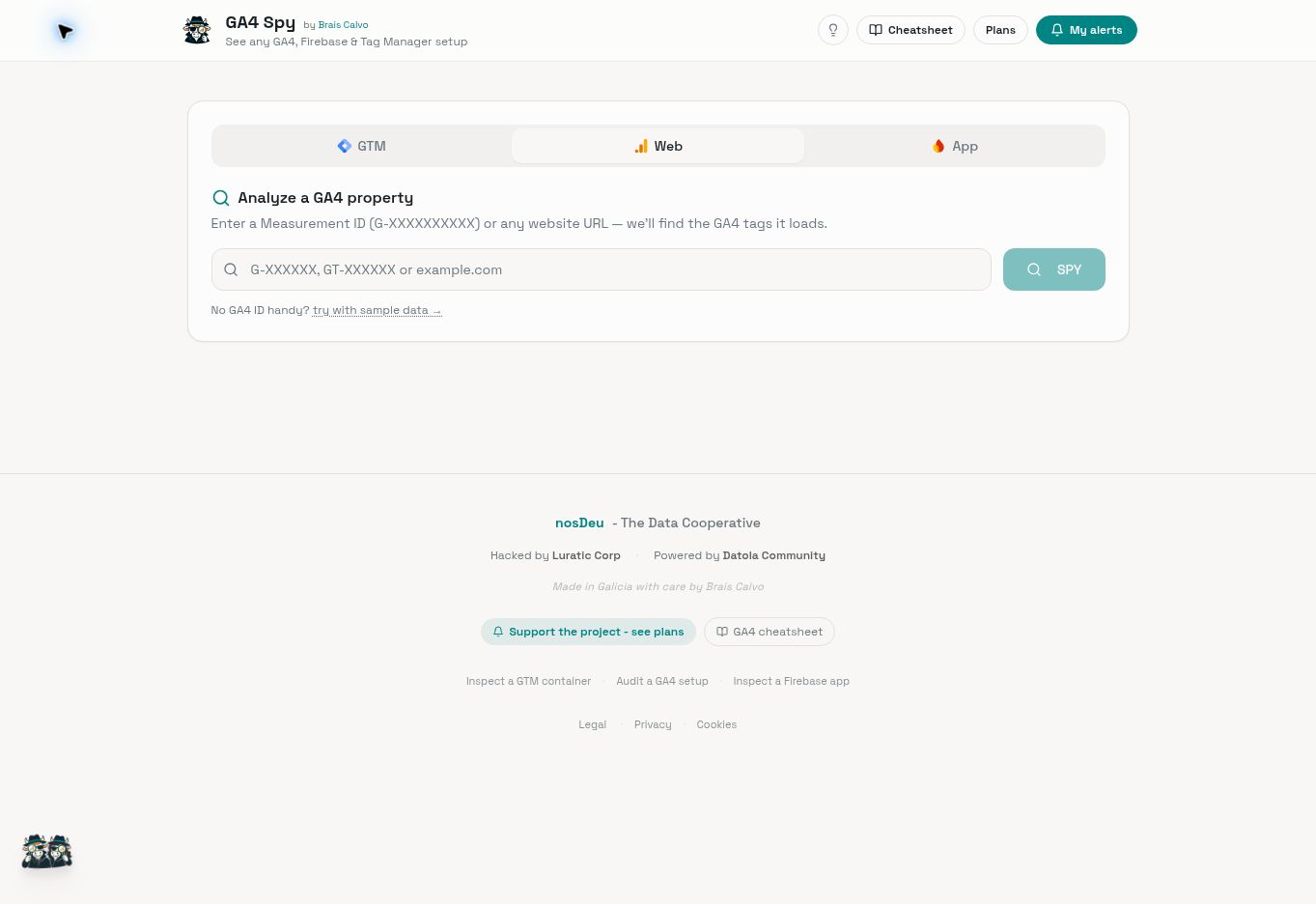
GA4 Spy brings Google Analytics 4, Google Tag Manager and Firebase inspection together in one web application. Start from a URL, Measurement ID, GTM container or App ID to review the public configuration served by Google without signing in to the project account.
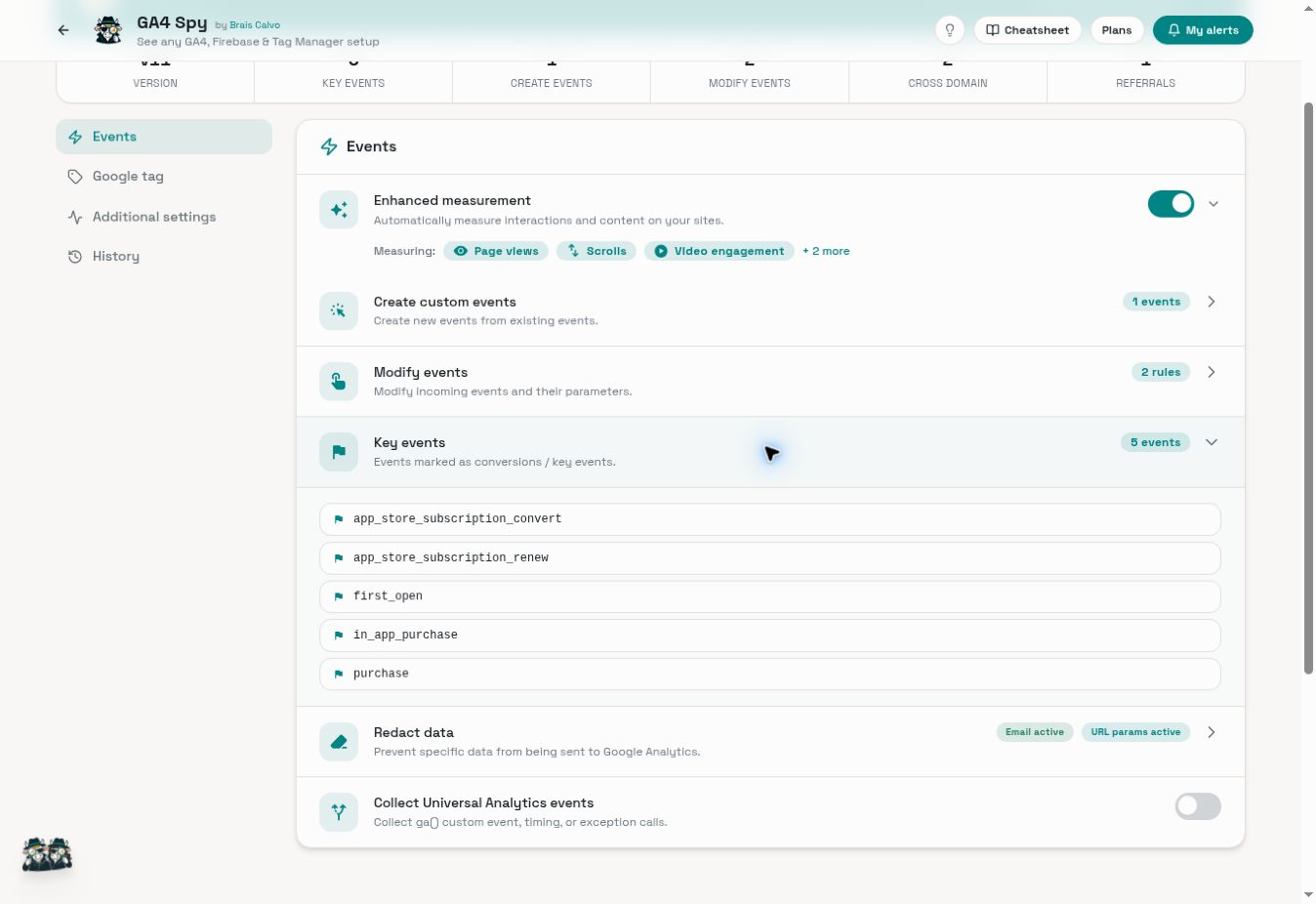
For GA4, it can inspect and monitor changes across dozens of configuration settings: created and modified events, conversions, Consent Mode, cross-domain settings, referral exclusions, Enhanced Measurement, Google tag settings and more.
For a published GTM container, it goes far beyond finding the ID: it reconstructs tags, triggers and variables, identifies Custom Templates from the gallery, detects providers and endpoints inside Custom HTML, finds unused elements and lets you monitor changes between versions.
The inspection works with public information and requires no login or access to Analytics or Tag Manager. It does not provide access to private traffic, user or conversion reports.
Three ways to investigate
| Input | What you can explore |
|---|---|
| Web / GA4 | Enter a URL, Measurement ID G-… or Google Tag ID GT-…. The tool can locate identifiers and inspect the configuration Google serves for the tag. |
| GTM | Enter a Container ID GTM-… or a URL to rebuild tags, triggers, variables and other elements from the published container in a readable form. |
| App / Firebase | Enter a Firebase App ID to inspect the Analytics configuration Google delivers to that application. |
Depending on the platform, the interface shows configured events, measurement options, destinations and consent or DMA signals. This is a reading of the available configuration; it should not be interpreted as a list of every event that has occurred in the property.
A practical example: review a GTM publication
Before publishing a change, you want to keep a reference of the container loaded by your website. Open the GTM inspector, enter the domain or container ID and review the published structure.
If you enable monitoring in your account, you can inspect the history and compare later versions: which tags, triggers or variables changed. That comparison helps investigate an incident after a publication or verify that the observed change matches what the team expected.
The same approach works for public GA4 tag settings or a Firebase app. GA4 Spy offers monitoring and alerts; channels, frequency and capacity depend on the selected plan.
Getting started
- Open GA4 Spy and choose Web, GTM or App depending on what you want to review.
- Paste a URL or the corresponding identifier. For Firebase, use the App ID rather than the commercial app name.
- If a website returns several identifiers, check which one belongs to the environment and implementation you are investigating.
- Explore the result by section and compare it with the change or question that led you to the review. The homepage also provides sample data so you can learn the interface.
- If you need monitoring, configure your account and the available alerts. Review history and diffs whenever a new configuration appears.
How to interpret what you find
A published container describes rules and tags, but it does not prove that every one of them fired during a specific visit. Likewise, a consent signal in the configuration does not by itself prove that the banner, initial states and updates work correctly in the browser.
Combine this inspection with GTM Preview, network requests or a DebugView test when you need to verify execution and reception. GA4 Spy is particularly useful for locating the configuration you need to inspect and explaining how it has evolved.
URL detection also has limits: a site may block the direct request and return an incomplete list. In that case, the interface suggests entering the known identifier. The GTM inspector requires an accessible published version and cannot display private workspace drafts.
Integration with other workflows
The API documentation describes operations for inspection, snapshots, diffs and alert management. MCP documentation is also available. Check authentication, plan and availability requirements before designing an integration: a documented function is not necessarily open to every account.
GA4 Spy is an independent project. To look up field definitions or prepare reports, continue with GA4 Spy · Cheatsheet.
Credits
Created by Brais Calvo.