

On this page
Control your test environment from Chrome
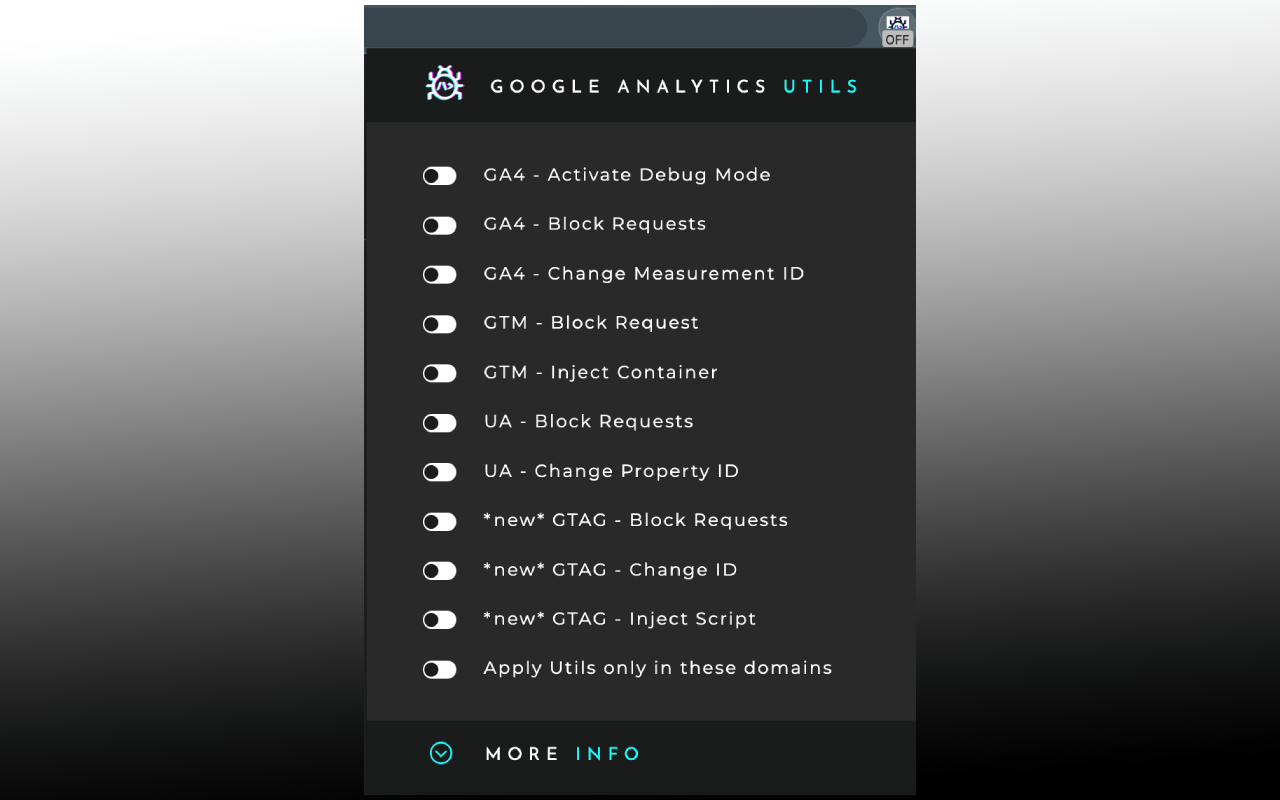
Google Analytics UTILS brings together controls for debugging GA4, managing the loading of Google Tag Manager and Google tag, and testing configurations on the page you are reviewing. You can choose a test destination, stop requests or enable debug mode.
Version 0.7.1 is now published in the Chrome Web Store. This page describes the version currently available.
Debug Mode: follow an interaction to its event
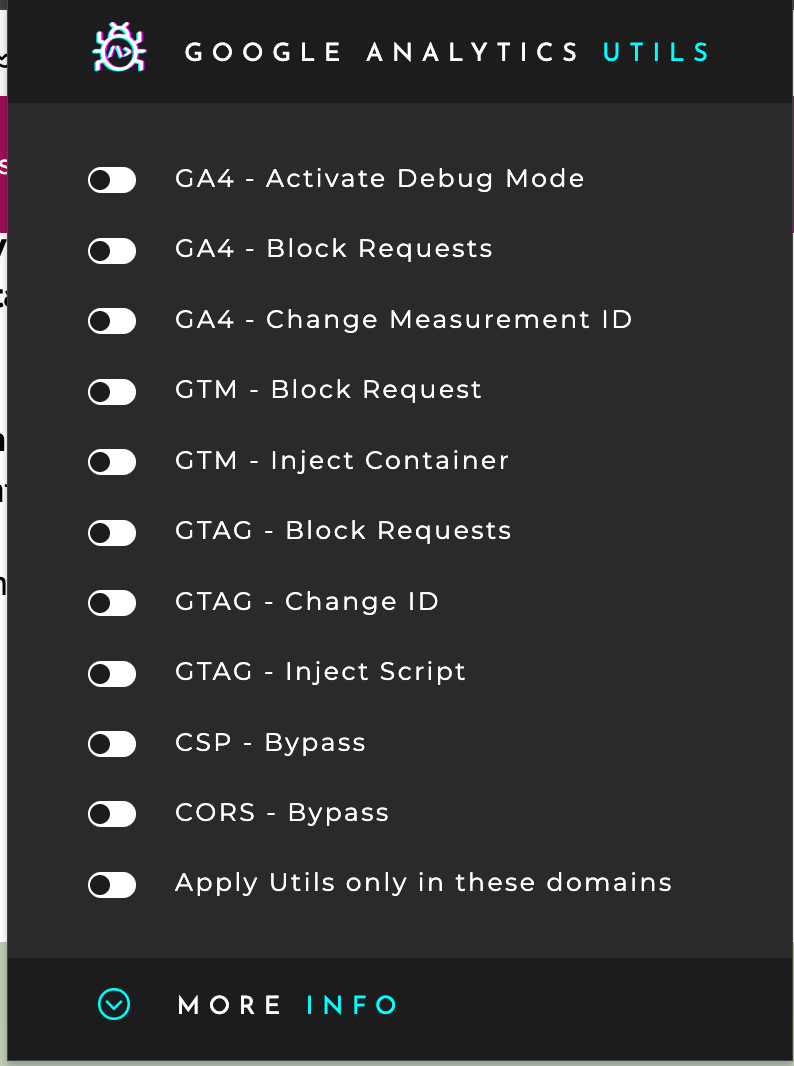
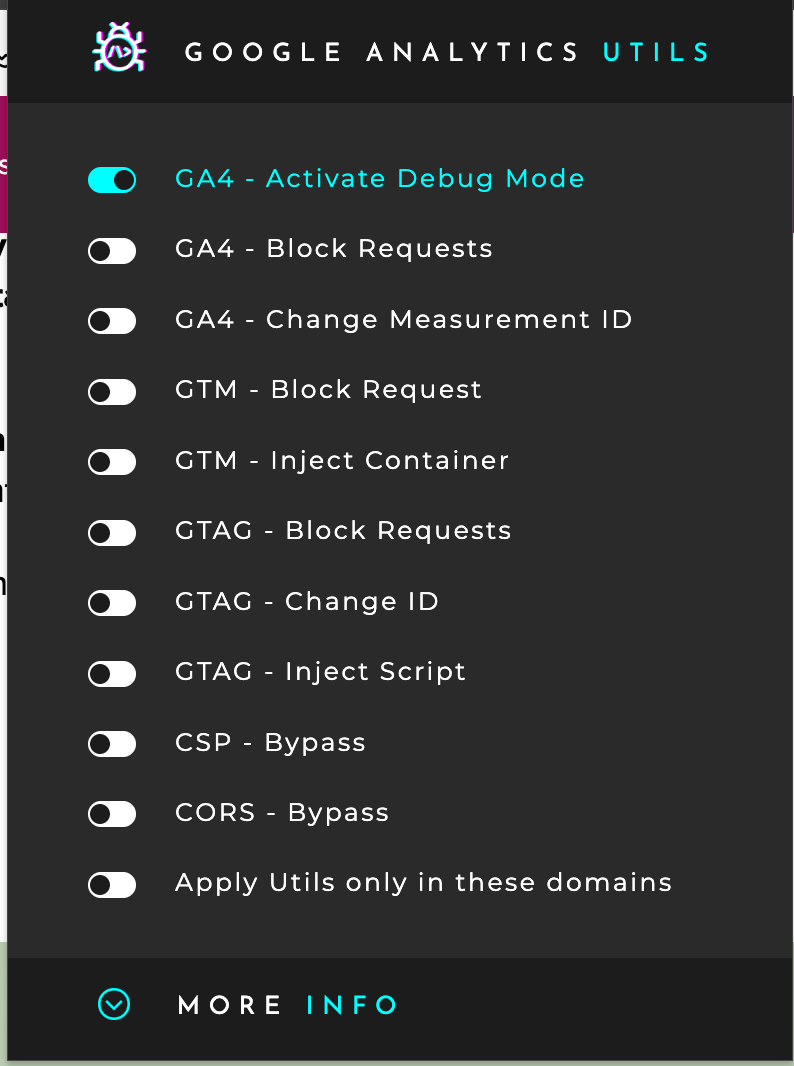
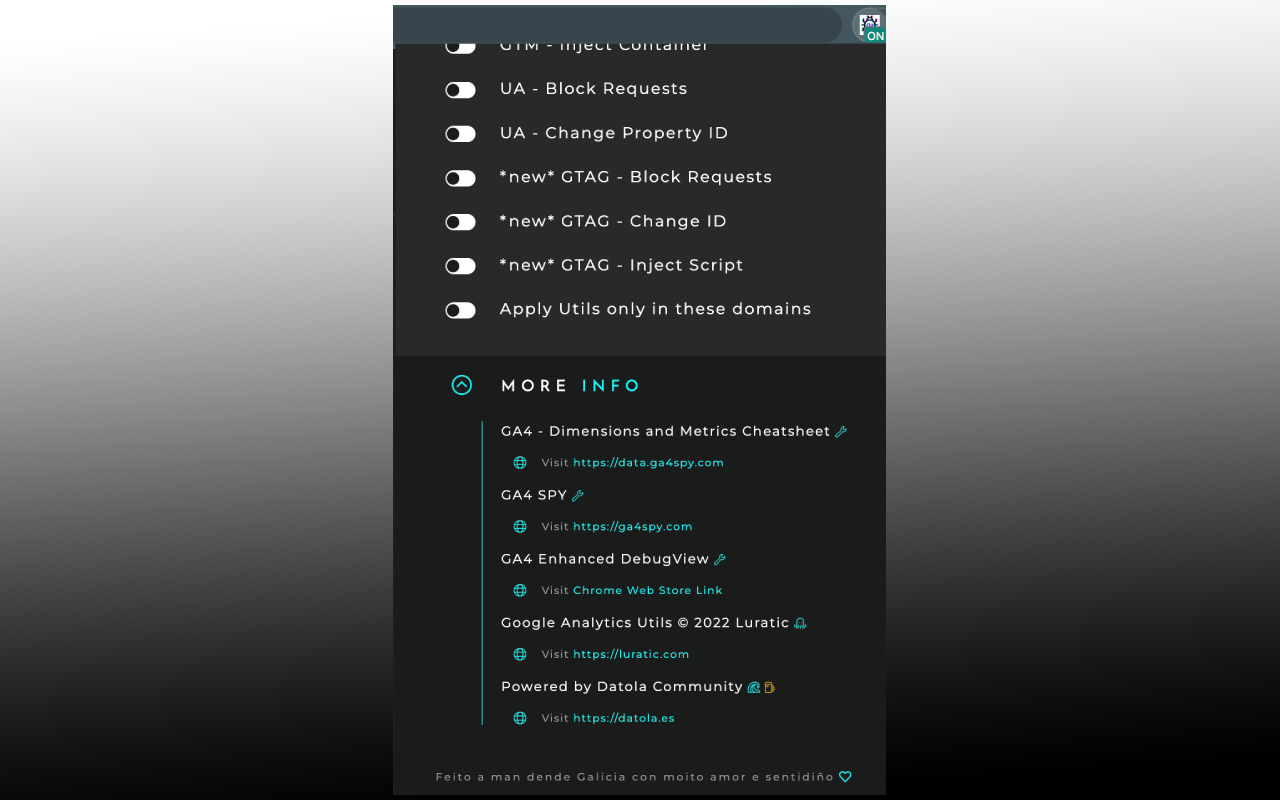
Enable GA4 - Activate Debug Mode, reproduce an action on your website and review its events in DebugView. The screenshots show the panel with all controls disabled and with Debug Mode enabled, highlighted in turquoise.
Select the specific event for a search, form or checkout step and review its parameters. The control does not create those events: the website must generate and send them. Make sure you are looking at the correct property and device.
Block requests, change the destination and stop scripts
These controls answer different questions while debugging:
| Control | What it lets you test |
|---|---|
| GA4 - Block Requests | Stops GA4 requests that match the blocking rules. Use it to prevent those requests from leaving the browser. |
| GA4 - Change Measurement ID | Replaces the Measurement ID in matching requests, for example with the ID of a test property. |
| GTM - Block Request | Prevents the Google Tag Manager scripts covered by the control from loading. |
| GTAG - Block Requests | Prevents the Google tag scripts covered by the control from loading. |
| GTAG - Change ID | Provides a separate control for specifying another Google tag identifier. |
Changing the Measurement ID does not stop the request: it may still be sent to Google or to the first-party endpoint already used by the site. It is useful for testing another identifier, but it is not the same as blocking communication.
Blocking a script acts on its loading. To compare site behavior with and without that script, repeat the flow from a reload; changing the control does not remove code that has already executed.
Inject a GTM container or Google tag for testing
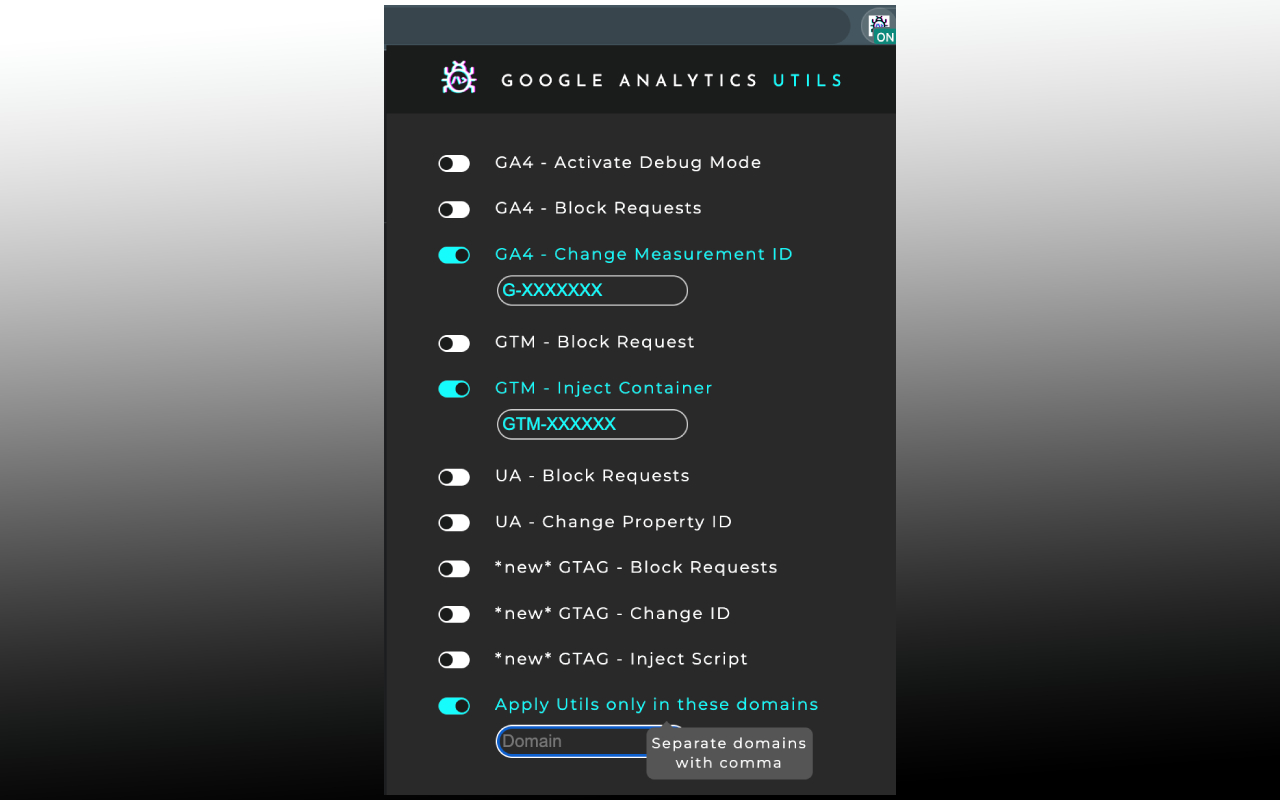
The panel includes GTM - Inject Container and GTAG - Inject Script. Enter the identifier you want to test, enable the option and allow User Scripts in Chrome. The extension requests the corresponding script from Google inside the page you are testing.
This flow lets you review a configuration of your choice in the real context of the site. Use trusted identifiers: a container can load additional tags and send information to destinations defined by its owner. The extension does not replace inspection of that container’s contents.
Limit tests and diagnose browser restrictions
Apply Utils only in these domains limits the sites where controls are applied. Define that scope before enabling destination changes, injection or header-related controls.
CSP - Bypass and CORS - Bypass help investigate browser restrictions during a test. They are disabled in a new installation and must be explicitly enabled.
CSP controls which resources and scripts a page is allowed to load. CORS adjustments can make cross-origin responses accessible to page scripts. These controls change your browser behavior during diagnosis; the fix for other visitors belongs in the site or server configuration. Disable them when you finish testing.
A practical example: validate a form
You want to check form data without repeatedly changing the published configuration:
- Limit the scope to the domain and decide the goal: observe a test request or prevent matching requests.
- To observe it, set the test Measurement ID and enable Debug Mode. To prevent it, use Block Requests and inspect the result in the network requests.
- If you need to test another GTM container or Google tag, enter its identifier and prepare injection with the User Scripts permission.
- After changing controls, repeat the flow from a page reload. Do not mix results obtained before and after a change.
- Submit the form with test data and compare the received values or expected blocking behavior. When finished, disable controls you no longer need.
Complete the review in DebugView
UTILS prepares the test on the website. GA4 Enhanced DebugView displays the selected event in the Chrome console, grouped into Parameters, User Properties and Items, with tables and expandable objects.
The extension rules have a specific scope; check the endpoints used by your implementation and the results you observe. Disabling a control does not withdraw requests that have already been sent.
See the Chrome Web Store listing and the privacy policy for version 0.7.1. Developed by Luratic, with interface design by Jesús Núñez.
Credits
Developed by Luratic. Interface design by Jesús Núñez.