
On this page
Template technical sheet
https://www.clarity.ms/tag/
Clarity Project IDCustom EventsCustom TagsCustom IdentifiersUser IDSession IDPage IDFriendly NameConsent / analytics_storageConsent / ad_storagePrioritize sessionsUpgrade reason
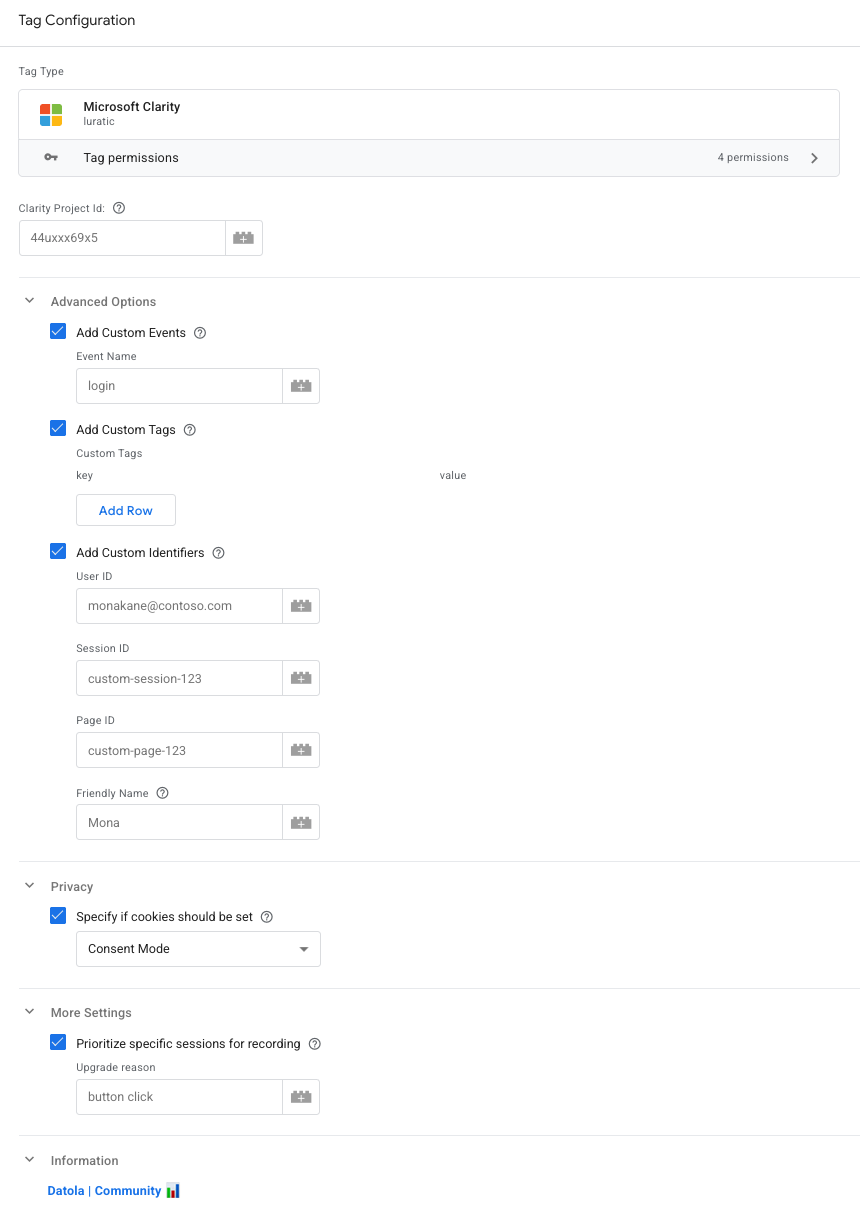
Clarity with the context you need for analysis
A recording becomes much more useful when you know what the person was doing, where they were in the journey and which action you want to investigate. This Luratic template loads Microsoft Clarity from Google Tag Manager and adds your own events, tags and identifiers to sessions.
It is built for GTM web containers. You need a Clarity project, its Project ID, and the triggers and variables that describe your implementation. This is a community template, not an official Microsoft template, developed by Alfonso Rodríguez, Txema Sánchez and Brais Calvo.
What you can configure
| Option | What it is for |
|---|---|
| Clarity Project ID | Loads the script for the project that will receive the information. This is the required field for the basic setup. |
| Custom Events | Sends the name of an action when the tag fires, such as checkout_started or form_error. |
| Custom Tags | Adds key-value pairs such as checkout_step: payment or experiment: variant_b so sessions can be found using that context. |
| Custom Identifiers | Lets you provide a User ID and, optionally, Session ID, Page ID and Friendly Name. |
| Consent | Communicates analytics and advertising storage states to Clarity through consentv2. |
| Prioritize sessions | Sends a priority request with a reason for sessions you want to pay particular attention to. |
Custom events and custom tags complement each other: an event describes an action; a tag provides a criterion for finding sessions. Prioritization helps highlight relevant sessions when Clarity selects recordings; it does not mean that only those sessions will be recorded.
A practical example: understand a checkout error
Imagine your website pushes a dataLayer event when a payment error occurs. You can use it as the trigger, send the payment_error event to Clarity and add tags with the checkout step and an error category that contains no personal data.
You can then search for that context in Clarity and review the available recordings: which interaction came before the error, whether it happened repeatedly and how navigation continued. The template communicates the signals you configure; the event and its values must already exist on your website or in GTM variables.
Getting started
- Add the Luratic template from the GTM Template Gallery, or import the repository file as a tag template.
- Create a tag and enter the Project ID for your Clarity project.
- Define the appropriate trigger for initial loading and for the actions you want to instrument. Avoid adding a second Clarity installation to the same site without reviewing the existing setup.
- Enable only the options you need and connect their fields to GTM variables. For test users, use internal identifiers that do not expose emails, names or other personal data.
- Configure consent and use Preview to check values, tag firing and consent transitions. Review the result in the Clarity project before publishing as well.
Consent: explicit configuration
To use these options, enable Specify if cookies should be set. With Consent Mode, the template reads analytics_storage and ad_storage, communicates their initial state to Clarity and listens for later changes to both consent types.
This depends on your CMP or consent implementation setting the GTM states correctly. Initialize them before the tag runs: GTM APIs consider a consent type granted when it does not yet have a state.
With Custom Consent Values, provide granted or denied through fields or variables. They are read when the tag fires, so you must arrange for them to update when the person changes their choice.
Also review Consent Mode in your Clarity project. The template loads the script when the tag runs; communicating denial does not by itself prevent the script from loading. Microsoft documents limited behavior without cookies when consent is denied. If your implementation must block loading completely until permission is granted, configure the corresponding GTM controls and triggers.
Permissions and documentation
The template declares permissions to load scripts from www.clarity.ms, access clarity, clarity.q, gtag and dataLayer, read consent and write debug logs. For consent it declares read access to analytics_storage and read/write access to ad_storage; the reviewed code checks those states and communicates them to Clarity.
See the template code and options, its version history, the Clarity API and the Consent V2 documentation.
Credits
Alfonso Rodríguez, Txema Sánchez and Brais Calvo.